Home
All Speed Tips
Other Tips
Optimization Software
Tech News
Internet Security
Ask The PC Expert
Computer Jargon
Contact Us
Subscribe via Email
Subscribe via RSS

Recent Articles
Learn To Repair PCs With The Right Course
Buying a Refurbished PC
How to Optimize Droid Razr Battery
|
|
How to disable CD/DVD Autoplay
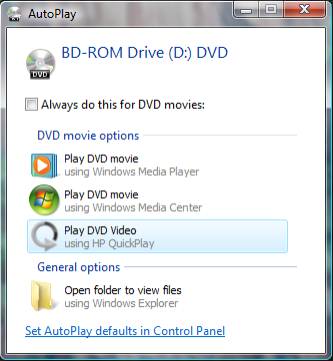
Simply put, when you insert a USB device, external hard drives, Compact Flash or Smart Media drive on your system a window pops up asking if you would want to open a file or play a DVD. That is Windows AutoPlay. It normally is set to on by default in windows. Most people find this feature very disturbing.
In addition, you may want to disable this feature for security reasons. This is because computer threats such as viruses, trojans, and other malicious software that come on external media could infect and damage your system even before you are prepared to scan the device for threats. CDs could come with rootkits and other threats as an example.
Disable Autoplay in Windows XP (Group Policy Settings)
To disable Autoplay in Windows XP: from start menu click Run-> Type gpedit.msc and press Enter. This leads to the group policy window. Go to Computer configurations -> Administrative Templates -> on the right-hand side search for the "Turn off Autoplay" and double click it. Turn off Autoplay properties will pop up. From the drop down window, select all drives or the drive you would want to disable.
Disable AutoRun in Windows 7
First, you have to log into your machine as an administrator. Type Gpedit.msc in the search box and hit enter. Navigate to computer configuration -> Administrative Templates -> Windows components -> on the right side area click Autoplay policy -> double-click turn off Autoplay. From here, you should be able to choose between turning off all drives or only removable drives such as USB, CD ROM and so on.
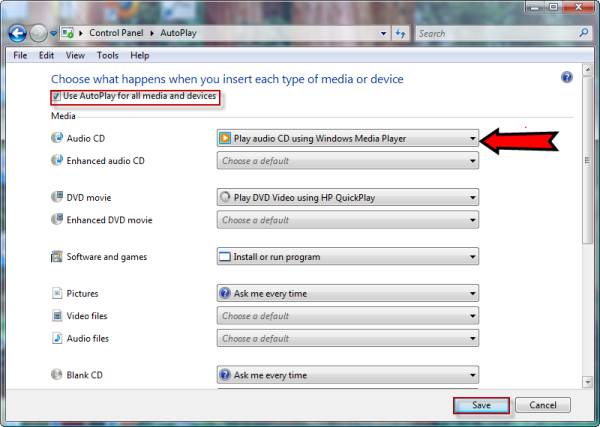
Next, restart your computer for the changes to take effect. If you are interested in disabling Autoplay for CD/DVD drive ONLY then you need to click on Control panel -> Classic View-> Autoplay -> deselect Use Autoplay for all media and devices and click save.
If you enjoyed this post, please
or
|
-By Dominic
TAGS: Windows 7 Tips Windows Vista Tips Windows XP Tips
Web site and all contents © Copyright ComputerTooSlow.com 2012, All rights reserved.
|
|